Connecting to Hopper's WiFi
Your phone or tablet connects directly to Hopper’s own WiFi network; there is no internet involved. The Cedar Aim app communicates with Hopper over this local connection.
It's a bit of an irony that Hopper solves the hard problem of plate solving the sky in real time, reliably and without fuss, but sometimes you trip up over the "simple" task of getting your phone to talk to Hopper over WiFi.
This page covers various issues you might run into when connecting, and how to resolve each.
"No Internet" warning when connecting
When you join Hopper's WiFi network, your phone will inform you that the network has no internet access. This is normal, as Hopper does not provide internet, only a local connection between your device and Hopper.
On iOS: iOS will show a "No Internet Connection" message but will stay connected automatically.
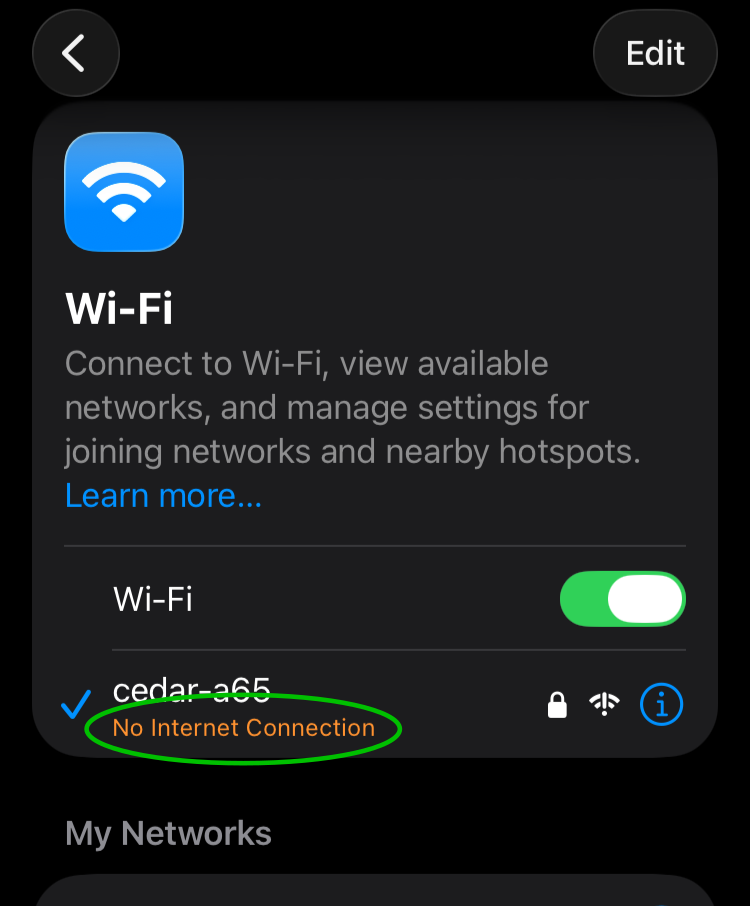
No action is needed, and you can proceed to open the Cedar Aim app.
On Android: Android will show a similar warning, but unlike iOS, it might not use Hopper's WiFi unless you tell it to stay connected.
After joining Hopper's WiFi, tap the notification that says the network has no internet (or open WiFi settings and tap on the Hopper network).
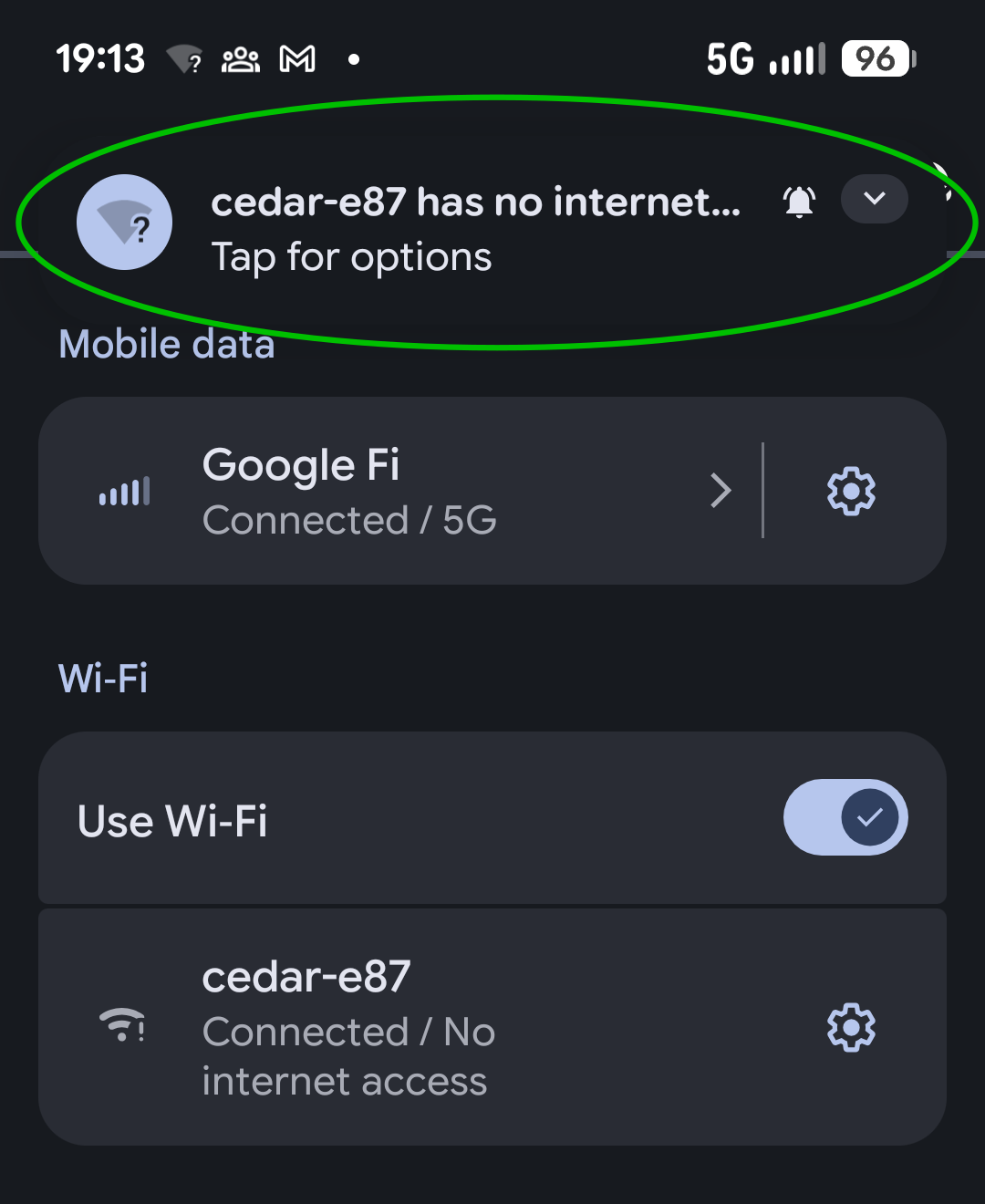
Look for an option such as "Connect anyway" or a toggle for "Stay connected" or "Don't ask again for this network."
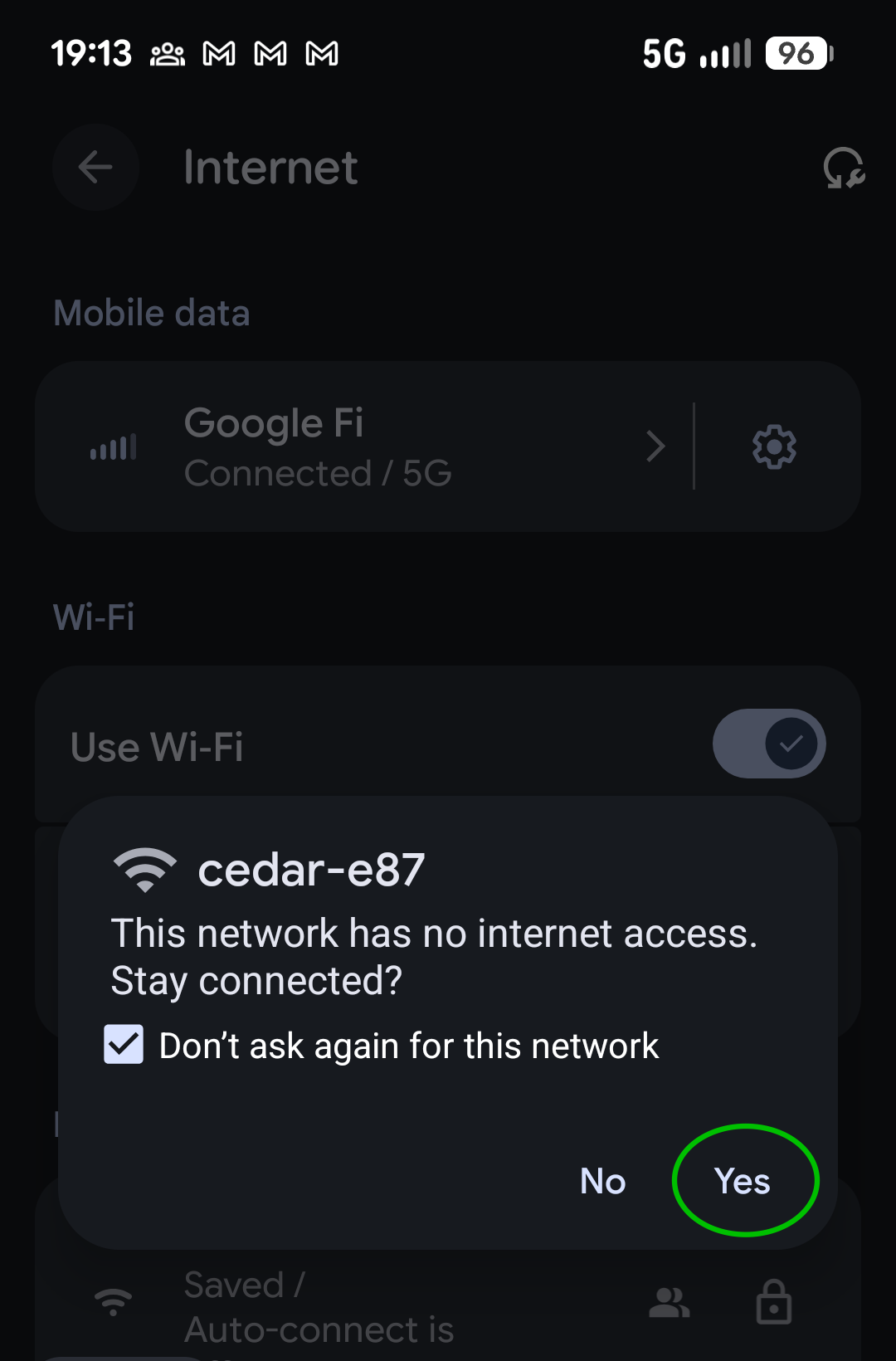
Confirm. Android will now remain on Hopper's WiFi network without dropping the connection or prompting you again.
The exact wording varies by Android version and phone manufacturer, but the option is always some variation of "use this network anyway."
If you skip this step on Android, you may find that Cedar Aim loses its connection to Hopper a minute or two after you start using it. That's Android dropping the WiFi network in the background. Acknowledging the warning fixes this.
Local network permission on iOS
When you first start Cedar Aim on your iPhone or iPad, it will prompt: "Allow Cedar Aim to find devices on local networks?”. You need to grant this permission so Cedar Aim can communicate with Hopper over its WiFi.
If you’re not sure whether you granted this permission, go to Settings…Apps. Find Cedar Aim, and grant it permission to access Local Network.
Airplane mode on Android
Some Hopper owners have reported that putting Android into airplane mode helps the WiFi connection to Hopper be more stable. Go to wireless settings, put the phone into airplane mode, and re-enable WiFi if needed to reconnect to Hopper.
"RPC deadline exceeded": WiFi interference
If your phone or tablet successfully connects to Hopper's WiFi, but Cedar Aim shows a connection error with the detail "RPC deadline exceeded," this can mean your device is connected but communication with Hopper is being disrupted by WiFi interference.
This is not a problem with Hopper itself; it's almost always caused by another nearby device disrupting the WiFi signal. Common sources of interference include:
Your home WiFi router
An HDMI monitor or TV
USB 3.0 devices: USB 3 hard drives, hubs, or cables can radiate noise in the same frequency range as WiFi
Other WiFi devices at a star party
To resolve:
Move away from your home's WiFi router. Try setting up farther from your house.
Turn off or move away from any nearby HDMI-connected monitor or TV that's powered on.
Disconnect or move away from any USB 3.0 devices near Hopper or your mobile device (laptops with active USB 3 ports/hubs are a common culprit).
If you are at a star party, move your rig away from other observers who are using WiFi-driven gizmos on their scopes.
Hopper overheating
We have seen situations where Hopper’s WiFi can fail if Hopper overheats. Make sure your Hopper’s rear vent holes are not covered.
Hopper software update
Try updating Hopper to the latest software version. We are continuing to fix bugs that can affect WiFi stability and performance. Instructions.
Device compatibility
In theory, Hopper works with any iOS or Android phone or tablet. In practice, WiFi behavior varies across devices, manufacturers, and OS versions, and some devices handle Hopper's connection better than others.
If you've worked through the tips above and are still having trouble connecting, try a different phone or tablet if you have one available. This can resolve the issue in some cases. If a different device does work, please let us know the model and OS version of the device that didn't; it helps us track down compatibility issues.
Incompatible devices
Apple iPad A16: multiple reports that it does not connect to Hopper, always reports “incorrect password”. Note that the iPad Air M4 has been verified to work with Hopper.
We're here to help
If you continue to have trouble with WiFi, or run into any other connection problems, please contact us at support@cs-astro.com